
What it does
MultiMonitor Desktop makes every monitor behave like a workspace of its own. It runs quietly in the notification area and takes care of three things Windows does not: where windows open, a full taskbar on every screen, and quick ways to move windows and the mouse between monitors.
- Window rules — send a program to a chosen monitor every time it opens, optionally maximized.
- Open where you are — a new window opens on the monitor where your mouse is, so a program you start from monitor 2 appears on monitor 2.
- Remembered sizes — each program comes back with its last size and position.
- A taskbar on every monitor with its own pinned apps, the windows of that monitor only, a Start button and a clock.
- A move button in every title bar — one click shows your monitors, one more moves the window.
- Hotkeys to move windows and jump the mouse, an edge resistance that stops the pointer from slipping onto the next screen, and a pointer lock for games and full-screen work.

It works with two or more monitors on Windows 10 and Windows 11. Your desktop, wallpaper, icons and the main Windows taskbar stay exactly as they are.
Installing
- Download MultiMonitorDesktop.zip and extract it to a folder that will stay put, for example
C:\Program Files\MultiMonitor DesktoporDocuments\MultiMonitor Desktop. - Run MultiMonitorDesktop.exe. Nothing opens — a small icon of three monitors appears in the notification area next to the clock. Double-click it to open Settings.
- If Windows SmartScreen says “Windows protected your PC”, click More info → Run anyway. This appears for any new program that is not yet widely downloaded.
- Optional: in Settings tick Start at sign-in so it starts with Windows (see Start at sign-in).
The tray icon
Right-click the icon in the notification area (it may be hidden under the ^ arrow):
| Item | What it does |
|---|---|
| Settings… | Opens the Settings window (also: double-click the icon). |
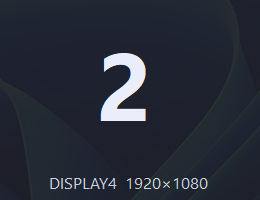
| Identify Monitors | Shows each monitor's number in big digits for a few seconds. |
| Move Last Active Window ▸ | Moves the window you used last to the monitor you pick. |
| Lock pointer to this monitor | Keeps the mouse inside the current monitor until you unlock it (Win+Ctrl+Alt+L). |
| Pause (no placement) | Stops moving new windows while ticked — handy when you arrange things by hand. |
| Open Log | Opens the log file: every placement and any error is written there. |
| Help · About | This guide, and the version. |
| Exit | Closes the app and gives Windows back its own taskbars on the secondary monitors. |
Window rules
A rule sends a program to a fixed monitor whenever one of its windows opens. Example: outlook.exe → Monitor 3, maximized.
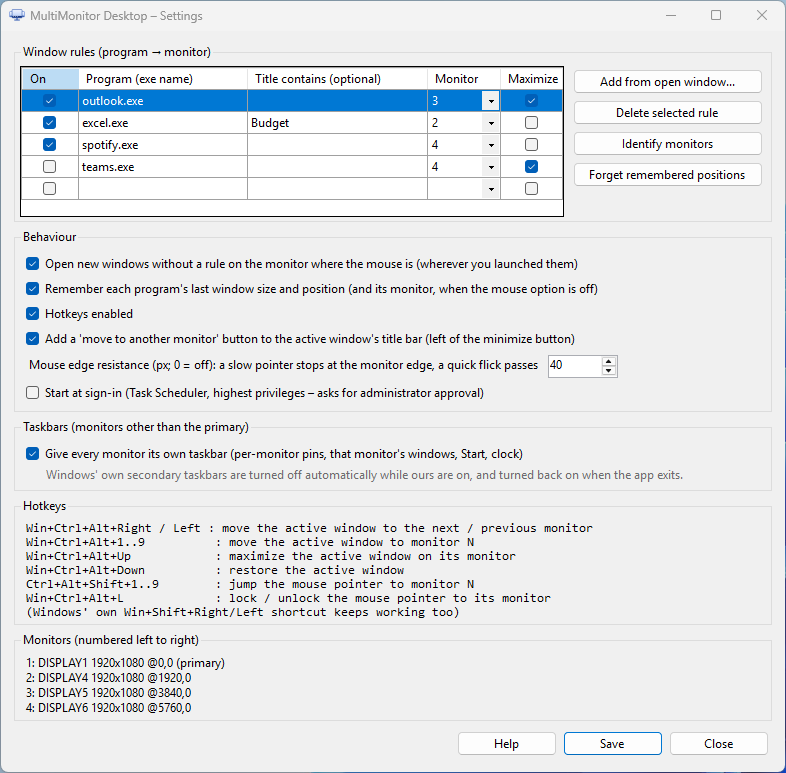
- Open Settings and click Add from open window… — pick the window from the list; the program name and monitor are filled in. Or type the program's file name (e.g.
chrome.exe) in an empty row. - Choose the Monitor, tick Maximize if you want it full-size there.
- Title contains is optional: the rule then applies only to windows whose title contains that text (for example a single Excel workbook).
- Click Save.
Untick On to switch a rule off without deleting it. A rule always wins over the other placement options.
Where new windows open
When a new window appears, MultiMonitor Desktop decides in this order:
- A rule for that program, if there is one.
- The monitor under the mouse, if Open new windows without a rule on the monitor where the mouse is is ticked.
- The remembered place: the program's last size and position. With the mouse option on, only the size and the position inside the monitor are used; with it off, the remembered monitor too.
Dialog boxes are left alone: a dialog that belongs to a window opens over its owner as Windows intends, and small fixed-size windows keep their own size. Only main program windows are remembered. Forget remembered positions in Settings clears the memory.
A taskbar on every monitor
Windows can show the taskbar on all monitors, but every bar shows the same pinned apps. MultiMonitor Desktop gives each secondary monitor a taskbar of its own:
- Pinned apps per monitor — what you pin on monitor 2 appears only on monitor 2.
- Only that monitor's windows — a window shows on the bar of the monitor it is on (minimized ones on the monitor they were last on).
- Start button and clock. The bar follows your Windows theme (light/dark), accent colour and left/centre alignment, and it reserves its space like the real taskbar so maximized windows do not cover it. It hides when a full-screen program covers its monitor.
Using the bar
| Action | Result |
|---|---|
| Click a button | Brings its window to the front, or minimizes it if it is already in front. With several windows of the same app, clicks cycle through them. |
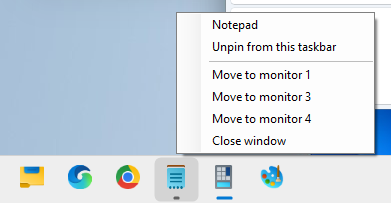
| Right-click a button | New window · Pin to / Unpin from this taskbar · Move to monitor N · Close window / Close all windows. |
| Drag a button | Reorders the pinned apps. |
| Drop a shortcut or .exe on the bar | Pins it to this monitor. |
| Right-click an empty part | Add Windows' pinned apps to this bar (copies the apps pinned on your main taskbar), Identify monitors, Settings. |
Pinning
Pinning always writes only to that monitor's own list; your main Windows taskbar is never touched. Four ways to pin: right-click a running app's button → Pin to this taskbar; right-click Start → find the app → right-click → Pin to this taskbar; drag a shortcut onto the bar; or Add Windows' pinned apps to this bar.
Not included in the secondary bars: the notification area (it stays on the primary monitor), window thumbnails on hover and jump lists.
Start on every monitor
Left-click the Start button of a secondary bar to open the real Windows Start menu on that monitor. The Win key itself still opens Start on the primary monitor, as usual.
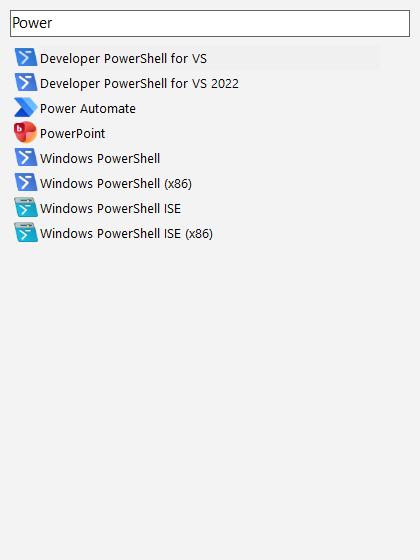
Right-click the Start button for the app list: every installed app with a search box. Double-click or press Enter to start an app; right-click it to pin it to this monitor's bar.
Title-bar button
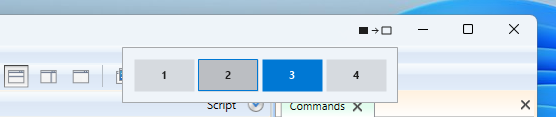
A small button sits in the title bar of the active window, just left of the minimize button.
| Click | Result |
|---|---|
| Left click | Monitor picker — click a monitor to move the window (a maximized window stays maximized). |
| Middle click | Moves the window straight to the next monitor. |
| Right click | Menu: Monitor 1…N, Maximize on this monitor, Restore. |
Switch it off in Settings if you prefer the hotkeys. In programs that draw their own title bar (browsers, some Office windows) the button is placed by the window frame and may sit close to tabs.
Hotkeys
| Keys | Action |
|---|---|
| Win+Ctrl+Alt+→ / ← | Move the active window to the next / previous monitor |
| Win+Ctrl+Alt+1…9 | Move the active window to monitor N |
| Win+Ctrl+Alt+↑ | Maximize the active window on its monitor |
| Win+Ctrl+Alt+↓ | Restore the active window |
| Ctrl+Alt+Shift+1…9 | Jump the mouse pointer to the centre of monitor N |
| Win+Ctrl+Alt+L | Lock / unlock the mouse pointer to its monitor |
Windows' own Win+Shift+←/→ keeps working too. The Win+Ctrl+Alt combination is used because Win+Alt and Win+Shift are reserved by Windows 11. If another program already uses one of these keys, that key is skipped and noted in the log. Turn all hotkeys off with Hotkeys enabled in Settings.
Mouse: edges, lock, jump
Edge resistance
When you move the pointer slowly to a monitor edge, it stops there instead of sliding onto the next screen — perfect for scroll bars, close buttons and window edges at the border. Push a little further (by the set number of pixels) or flick the mouse quickly and it passes. Set the distance in Settings; 0 switches it off (default 40 px).
Pointer lock
Win+Ctrl+Alt+L or the tray menu keeps the pointer inside its current monitor — useful for games and full-screen programs on one screen. Press again to unlock. If you jump the pointer to another monitor with Ctrl+Alt+Shift+N, the lock moves with it.
The Settings window
| Option | Meaning |
|---|---|
| Window rules | See Window rules. Buttons: Add from open window…, Delete selected rule, Identify monitors, Forget remembered positions. |
| Open new windows without a rule on the monitor where the mouse is | See Where new windows open. |
| Remember each program's last window size and position | Main windows come back where they were. |
| Hotkeys enabled | All hotkeys on or off. |
| Add a 'move to another monitor' button to the active window's title bar | See Title-bar button. |
| Mouse edge resistance (px) | See Mouse; 0 = off. |
| Start at sign-in | See Start at sign-in. |
| Give every monitor its own taskbar | See A taskbar on every monitor. Untick to return to Windows' own bars. |
Changes take effect when you click Save. Settings are kept in %APPDATA%\CPS MultiMonitor Desktop\config.json.
Monitor numbers
Monitors are numbered from left to right by their position, 1 being the leftmost — the same numbers are used by rules, hotkeys and menus. Identify monitors shows them on screen:
Start at sign-in
Tick Start at sign-in in Settings and click Save. Windows asks for administrator approval once: the app is registered in Task Scheduler as CPS MultiMonitor Desktop, starting a few seconds after you sign in, with highest privileges.
Why highest privileges? Windows does not let a normal program move windows of programs that run as administrator. With highest privileges MultiMonitor Desktop can place those windows too. It is not a Windows service and never runs when nobody is signed in.
Exiting and uninstalling
- Exit from the tray menu closes the app and turns Windows' own secondary taskbars back on.
- From a command line:
MultiMonitorDesktop.exe --exitcloses a running copy;MultiMonitorDesktop.exe --settingsopens its Settings.
To uninstall: untick Start at sign-in and Save, choose Exit, then delete the program folder and, if you like, %APPDATA%\CPS MultiMonitor Desktop (settings and log). Nothing else is left on the PC.
Troubleshooting
| Symptom | What to do |
|---|---|
| A program does not move | Check Pause is off and the rule's program name is right (Open Log shows every window and the reason it was or was not moved). If the program runs as administrator, enable Start at sign-in (highest privileges). |
| A hotkey does nothing | Another program may own it — the log lists keys that could not be registered. |
| Windows' taskbars are missing on the other monitors | Start MultiMonitor Desktop and choose Exit once; this turns them back on. (Happens only if the app was killed.) |
| Pop-ups such as reminders open on the “wrong” monitor | They follow the mouse option. Write a rule for that program, or switch the mouse option off. |
| A monitor shows no taskbar | The primary monitor keeps the Windows taskbar; ours appear on the others. Make sure Give every monitor its own taskbar is ticked. |
The log is at %APPDATA%\CPS MultiMonitor Desktop\log.txt.
Privacy
MultiMonitor Desktop works entirely on your PC. It does not connect to the internet, collects no data and sends nothing anywhere; the only web link is the Help menu when this guide is missing. Its settings and log stay in your own profile folder.
© 2026 Commercial Professional Software Ltd. · MultiMonitor Desktop is free to use. Windows is a trademark of the Microsoft group of companies; MultiMonitor Desktop is an independent product.